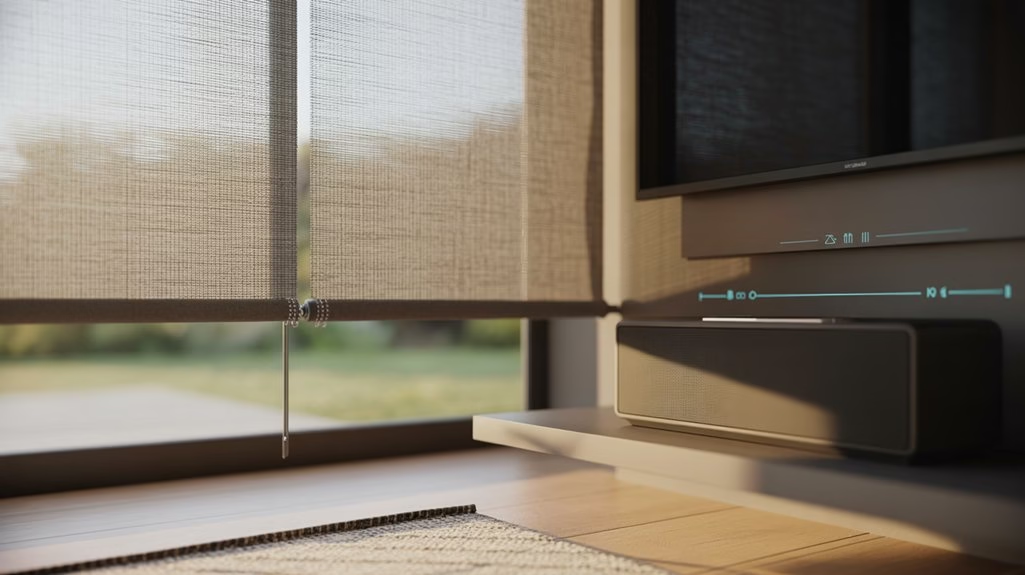
You can sync motorized blinds with your audio system to boost ambiance, cut glare, and automate scenes for movies, music, bedtime, or sunrise. Use Alexa, Google Assistant, or Siri for routines and voice control, and consider hubs like Somfy TaHoma or Go Smart Bridge for broader compatibility and range. Link devices to the same account, keep them on the same Wi‑Fi, update firmware, and stagger actions. If you want smooth, coordinated light and sound, here’s how to make it effortless.
Key Takeaways
- Use a common platform (Alexa, Google Assistant, or Siri/HomeKit) to control both motorized blinds and speakers under one account.
- Add a hub like Somfy TaHoma or Go Smart Bridge for broader compatibility and reliable routine syncing.
- Create routines/scenes that pair blind movements with audio actions (play, pause, volume) and adjust timing delays for alignment.
- Keep devices on the same Wi‑Fi, update firmware, and enable permissions for stable, responsive control.
- Test and refine schedules for scenarios like sunrise wake-ups, movie nights, and glare reduction during daytime listening.
Benefits of Syncing Blinds and Audio in a Smart Home
While it may seem simple, syncing motorized blinds with your audio system instantly elevates your home’s ambiance and convenience. You orchestrate lighting and sound together, making movie nights richer and music sessions more immersive.
With motorized window treatments, you can control your motorized blinds to cut glare, tame reflections, and improve acoustics, so dialogue sounds clearer and bass feels tighter.
Motorized blinds cut glare, tame reflections, and enhance acoustics—clearer dialogue, tighter bass, richer sound.
Create routines that lower shades as soft music fades in at bedtime or during focus sessions. Schedule sunrise openings with a favorite playlist to start your day naturally.
Use voice control via Google Assistant for seamless, hands-free adjustments across rooms. Automated scenes also save energy, dimming artificial lights as daylight is managed intelligently.
The result is a cohesive, responsive, and efficient smart home.
Platform Options: Alexa, Google Assistant, and Siri
Even if you’ve standardized on one ecosystem, choosing the right voice platform shapes how naturally you control your blinds.
With Amazon Alexa, you trigger motorized shades using voice commands, group actions into scenes, and set moods with a single phrase. Say “Movie time,” and your blinds lower while lights dim and music starts.
Google Assistant emphasizes precision and routine-building. You can say, “Hey Google, set the blinds to 40%,” schedule sunrise openings, and chain blinds with lighting and HVAC for energy savings.
Siri offers a secure, HomeKit-native experience. Use Shortcuts and geofencing—“Hey Siri, I’m home”—to raise blinds and cue audio instantly.
All three support scheduling, routines, and multi-device control, so you orchestrate blinds, lighting, heating, and speakers as one cohesive system.
Hardware and Hubs: Somfy TaHoma, Go Smart Bridge, and More
Because hardware ties your ecosystem together, hubs like Somfy TaHoma and Go Smart Bridge become the command centers for blinds and audio.
With Somfy TaHoma, you integrate motorized blinds and your speakers, then control them with voice via Amazon Alexa, Google Assistant, and more. Go Smart Bridge offers similar flexibility, giving you individual or group control from your phone or by voice.
Both hubs let you build custom routines that sync blind movement with audio playback, so wake-ups, work sessions, or movie time feel cohesive.
Their broad compatibility with popular smart home platforms helps everything work smoothly with devices you already own. If you’ve got a larger home, Go Smart Bridge’s range—up to 150 feet—keeps blinds responsive while your audio system stays in lockstep.
Step-by-Step Setup for Coordinated Light and Sound Scenes
Before you build scenes, confirm your motorized blinds and speakers share a smart platform (Alexa, Google Assistant, or Apple HomeKit) so a single app can control both.
Link devices to the same account, then verify you can open/close blinds and play audio from one interface.
Open the Google Home or Apple Home app (or Alexa) and create a routine.
Add actions: set motorized blinds to open/close to specific positions, then choose audio playback—playlist, station, or input.
Schedule times, like sunrise wake-up with soft music, or an evening “movie” routine.
Name voice triggers, such as “Alexa, start movie night.”
Test the routine, fine-tuning delays so blinds move before sound starts.
Keep a remote control handy as a fallback while you calibrate timing and volumes.
Pro Tips, Safety, and Troubleshooting for Seamless Automation
While your scenes may run smoothly most days, lock in reliability with a few smart habits: confirm both blinds and speakers stay on the same Wi‑Fi and account, keep firmware up to date, and use a hub or bridge (like Go Smart Bridge) if you need stronger, low‑latency control.
Verify your motorized blinds and audio system support Amazon Alexa, Google Assistant, or HomeKit before linking routines.
- Build routines that open blinds as music starts, or darken for movie nights; stagger actions to avoid network spikes.
- Safety first: keep cords clear, set obstruction detection, and define limits so blinds don’t pinch or overrun.
- Troubleshoot: recheck Wi‑Fi, app permissions, and device names; reboot or re‑pair unresponsive gear.
- Harden reliability: assign static IPs, minimize 2.4/5 GHz band roaming, and log failures.
Frequently Asked Questions
How to Connect Motorized Blinds to Google Home?
Connect compatible motorized blinds to Google Home by installing their app (e.g., PowerView), creating an account, and linking the blinds, often via QR code.
In Google Home, add the service, link accounts, and guarantee your Nest Hub and blinds share Wi‑Fi.
Create routines for automation benefits like sunrise/sunset schedules.
Use voice commands: “Hey Google, open the blinds.”
You’ll streamline your smart home, gain hands‑free control, and monitor status from the Google Home app.
How to Sync Motorized Blinds?
You sync motorized blinds by aligning them on one platform, then creating scenes and routines that trigger together.
Use motorized blinds synchronization techniques in apps like PowerView or Somfy TaHoma, link them to Alexa, Google, or HomeKit, and test group calibration.
Schedule sunrise/sunset actions for smart home automation benefits, add voice commands, and pair with audio for ambiance.
Update firmware regularly.
Configure privacy presets to close at night, enhancing privacy solutions effortlessly.
How to Connect Motorized Blinds to Alexa?
To connect motorized blinds to Alexa, confirm they’re Alexa-compatible via a hub or app (e.g., Somfy TaHoma).
Install the Alexa app, enable the blinds’ skill, then link your account by signing in and granting permissions.
Run device discovery to add the blinds. Use voice control with commands like “Alexa, open the blinds.”
Create routines for smart home automation benefits—schedule sunrise openings, bedtime closings, or tie actions to presence, scenes, and sensors.
Can I Control My Automatic Blinds With My Phone?
Yes—you can control your automatic blinds with your phone.
Worried it’s complicated? It’s not. Download the manufacturer’s smartphone apps, create an account, and follow the setup steps to pair your blinds.
You’ll get remote control from anywhere, plus home automation perks: schedule openings, create scenes, group rooms, and monitor energy usage.
If you use Alexa or Google Assistant, you can trigger app-set scenes by voice, keeping everything synced and simple.
Conclusion
You’ve now got everything to sync your motorized blinds with your audio system and make daily life smoother. Start simple with voice scenes, then layer routines for mornings, work, and movie nights. You’ll feel the difference: studies show the right lighting can boost mood and productivity by up to 20%. Keep firmware updated, name devices clearly, and test triggers at different times. With a few tweaks, you’ll enjoy hands-free ambience that feels custom-built for you.